
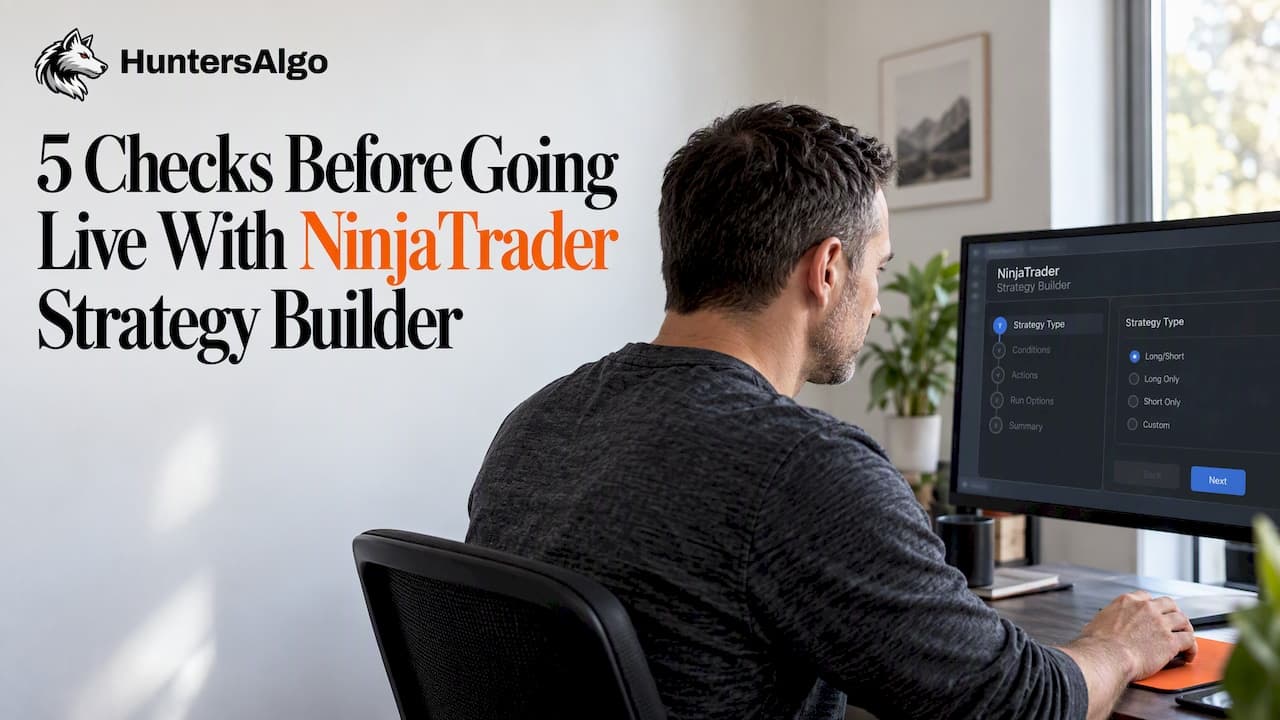
A NinjaTrader strategy builder, in the sense most traders mean today, is a library of pre-built, backtested automated strategies and configurable indicators you can set up, test, and run without writing code. The practical path is simple: configure the parameters, backtest with realistic settings, forward-test in simulation, then deploy live only once the results hold up. HuntersAlgo offers one on-site route to that workflow with published backtests and configuration controls built in.
TL;DR:
- Reproduce a published backtest with its exact date range, instrument, and parameter file; missing emulator settings or raw files make results unverifiable.
- Favor testing across multiple nonoverlapping periods, because optimizing against one historical window can overfit parameters to conditions that may not recur.
- Set emulator commissions, slippage, and fill assumptions to match your broker, then assess the worst drawdown and longest losing streak alongside profitability.
- Keep strategies in real time simulation for several weeks across varied conditions, and inspect individual fills before live deployment; a few days are insufficient.
Table of Contents
- What a ready-made NinjaTrader strategy package includes
- Key features and controls to expect
- How to evaluate backtests and spot unrealistic claims
- Practical NinjaTrader settings and tests to run before going live
- How HuntersAlgo gets you from evaluation to simulation to live
- Inside the NinjaTrader Strategy Builder interface
- Building a simple strategy step by step
- Troubleshooting and debugging strategies in NinjaTrader
- Optimizing strategy parameters without overfitting
- Adding custom indicators and external inputs
- Why reproducible testing is the real edge
- Try HuntersAlgo: trial, pricing, and next steps
- FAQ
- Sources
What a ready-made NinjaTrader strategy package includes
A ready-made strategy package is not a blank canvas. It arrives with the logic already written, tested, and documented, so your job shifts from coding to configuring and verifying.
A typical package includes:
- Compiled strategy scripts (and often companion indicators) ready to import into NinjaTrader 8.
- Parameter files or settings sheets covering session windows, position sizing, and exit rules.
- Published backtest reports showing historical performance across a stated date range.
- Setup guides walking through installation, data requirements, and chart configuration.
- Simulation templates for running the strategy on a sim account before committing real capital.
Your workflow with these pieces is: import the strategy, configure it to your account and risk tolerance, backtest it in the Strategy Analyzer, forward-test in real-time simulation, then move to live trading once the trade-level results match expectations. This is distinct from NinjaTrader's native visual Strategy Builder tool, which is a no-code editor for assembling your own entry and exit rules from scratch. A ready-made package skips that construction phase entirely and gives you a tested system to evaluate instead.
Key features and controls to expect
Before trusting any packaged strategy, check it against a short list of practical features. These are the controls that separate a usable system from a black box.
- Net-of-fees backtest output. Reports should show commission and fee impact, not just gross profit, so the numbers reflect what you would actually keep.
- Simulation support with broker-emulator fidelity. The package should run cleanly on a sim account with realistic order-fill behavior, not just a chart replay.
- Session and position controls. Look for adjustable trading windows, contract sizing, and stop or exit parameters you can tune to your account size.
- Optimizer and walk-forward compatibility. The strategy should support testing across multiple time segments, not a single curve-fit sample.
- Documentation and support access. Setup guides, parameter explanations, and a way to ask questions (community channel or support team) matter as much as the code itself.
Pro Tip: Before running any new strategy on a live account, reproduce at least one published backtest yourself using the same date range and settings. If your numbers do not come close to the published figures, stop and find out why.
How to evaluate backtests and spot unrealistic claims
Backtest reports vary widely in honesty and rigor. A few checks separate a credible result from a curve-fit illustration.
- Confirm the broker emulator settings: commission per contract, slippage assumptions, and execution delay should be disclosed and realistic for the instrument traded.
- Favor results built on walk-forward or out-of-sample testing rather than a single optimized sample, since regulators and experienced traders treat that staged verification as stronger evidence of robustness.
- Require a hypothetical-performance disclosure. The CFTC warns that hypothetical results often suffer from hindsight bias and urges skepticism toward claims of high profit with minimal disclosed risk, since such results may not reflect real trading costs or slippage.
- Ask for reproducibility: the exact parameter file, data date range, and instrument used, so you can rerun the test on your own machine.
One figure worth internalizing: the CFTC's guidance on trading system marketing specifically flags hypothetical performance claims as prone to hindsight bias, meaning a strategy tuned after seeing the data tends to look better than it will trade going forward.
A strategy that will not share its emulator settings, date range, or raw parameter file is not one you can verify. Treat that refusal as a red flag regardless of how polished the equity curve looks.
Practical NinjaTrader settings and tests to run before going live
NinjaTrader's own strategy development guidance lays out a staged process: backtest, then forward-test in real-time simulation, then deploy live. Treat each stage as a gate, not a formality.
- Run a basic backtest first to confirm the strategy executes as described and produces a plausible trade log.
- Move to the optimizer, then run a walk-forward optimization to check whether performance holds across different time windows rather than just the window it was tuned on.
- Set the broker emulator to match your actual broker's commission and slippage model, and enable realistic order-fill rules such as execution delay or one-tick fills, since TradingView's documentation on broker emulators notes these settings materially change how realistic a backtest looks.
- Choose a data series long enough to span multiple market regimes, not just a strong trending stretch.
- Forward-test the strategy in real-time simulation for several weeks or months, reviewing individual trade fills rather than just the summary statistics.
Pro Tip: When reviewing results, weigh the worst drawdown and the longest streak of consecutive losses as heavily as the average trade expectancy. A strategy with a smooth equity curve but one brutal drawdown period is riskier than the headline numbers suggest.
How HuntersAlgo gets you from evaluation to simulation to live
Once you know what to check, the fastest path is a library built around those exact checks. We built HuntersAlgo around configurable strategies and indicators for NinjaTrader 8 and TradingView, each shipped with published backtests, setup documentation, and simulation-ready configuration.
What is included in a HuntersAlgo subscription:
- A full strategy and indicator library, including session-specific systems like The Philosophers, which runs morning reversal and afternoon continuation logic.
- Published backtest results for each strategy, available alongside the strategy description.
- Step-by-step setup guides covering installation, chart configuration, and how to run a strategy in simulation before going live.
- A backtest reproduction helper so you can verify published results yourself rather than taking them on faith.
- Direct community and developer support through our Discord channel.
The trial path mirrors the evaluation checklist above: install a strategy, reproduce its backtest using the provided parameter file, run it on a NinjaTrader simulation or paper-trading account for a stretch of real-time sessions, then decide whether to deploy live. Every strategy and indicator in the library is included under one subscription, so you are not piecing together separate purchases to build a complete setup.
Inside the NinjaTrader Strategy Builder interface
NinjaTrader's native Strategy Builder presents a step-by-step wizard where you define entry conditions, exit conditions, and order types through dropdown menus and condition blocks, without writing NinjaScript directly. The interface groups logic into tabs: one for entry rules, one for exits, one for order management, and one for general strategy properties like time filters and position sizing limits.
Each condition block lets you chain indicators, price action rules, and time-based filters using simple comparison operators like "crosses above" or "greater than." The wizard compiles your selections into working NinjaScript code behind the scenes, which you can later inspect or hand-edit if you want to extend the logic beyond what the wizard supports.
Key panels to know include the Strategy Analyzer, where you load a built strategy against historical data and run backtests, optimizations, or walk-forward tests, and the Strategies tab in the Control Center, where you enable a strategy on a live or simulated account once testing is complete. The interface also exposes parameter fields that become adjustable inputs, letting you tune values like stop distance or session start time without touching the underlying code.
Understanding this layout matters even if you run pre-built strategies rather than constructing your own, because the same Strategy Analyzer and parameter panels are where you will configure, backtest, and simulate any packaged strategy you install.
Building a simple strategy step by step
A basic strategy walkthrough in NinjaTrader's wizard follows a consistent sequence, and knowing it helps you understand what a packaged strategy's settings sheet is actually configuring.
First, open the Strategy Builder from the New menu in the Control Center and name your new strategy. Second, define an entry condition set, such as a moving average crossover, by adding a condition block and selecting the indicator, comparison, and value. Third, set your order type for entry, typically a market or limit order, and specify quantity.
Fourth, add exit conditions covering both profit targets and stop losses, either as fixed tick or dollar values or as a second set of indicator-based conditions. Fifth, set strategy properties like time-in-force, trading session windows, and whether the strategy should flatten positions at session close.
Sixth, save the strategy and open the Strategy Analyzer to run an initial backtest against historical data, checking that trades fire as expected and that the equity curve looks reasonable. Finally, before any live use, run the compiled strategy on a simulated account through several real-time sessions to confirm fills and timing behave as the backtest suggested, following the staged testing approach NinjaTrader recommends for any strategy, built or packaged.

Troubleshooting and debugging strategies in NinjaTrader
Most strategy problems in NinjaTrader fall into a few recurring categories, and checking them in order saves time.
If a strategy will not generate any trades, check first that the data series matches what the strategy expects (timeframe, instrument, and session template), since a mismatched data series is the most common silent failure. Next, confirm the strategy is actually enabled on the correct account and that your historical data range covers enough bars for any indicators to calculate.
If backtest results look wildly different from live or simulated results, check the broker emulator settings: commission, slippage, and fill-price assumptions often explain the gap more than any flaw in the strategy logic itself. Mismatched session time zones between your chart and your strategy's time filters are another frequent cause of trades firing at the wrong hours.
For strategies that throw compile or runtime errors, the NinjaScript Output window in the Control Center shows the specific error message and line reference, which is the fastest way to isolate the issue. When a packaged strategy behaves unexpectedly, check the setup guide first for known configuration requirements, such as a specific chart template or instrument list, before assuming the strategy itself is broken.
Logging trade-level detail during simulation, rather than only reviewing the summary performance report, makes it far easier to spot whether an issue is a one-time data glitch or a structural problem with the strategy's logic.

Optimizing strategy parameters without overfitting
Parameter optimization inside NinjaTrader's Strategy Analyzer lets you test ranges of values, say a stop-loss distance from 10 to 30 ticks in steps of 5, and see which setting produced the best historical result. The temptation is to chase the single highest-profit combination, which is exactly how overfitting happens.
A more reliable approach runs the optimizer across multiple non-overlapping time periods and favors parameter sets that perform reasonably well across all of them, rather than the one combination that happened to maximize profit on a single historical stretch. NinjaTrader's documentation describes walk-forward optimization and multi-objective optimization modes specifically for this purpose, letting you test a parameter set's stability as the data window rolls forward in time.
Beyond profit, weigh optimization results by drawdown, trade count, and consistency across market regimes. A parameter set that produces moderate profit with a shallow, stable drawdown across several periods is usually more durable than one with a spectacular result confined to a single trending month.
Once you settle on a parameter range, forward-test it in real-time simulation before adjusting further. Re-optimizing repeatedly against the same historical window, chasing small improvements, is one of the fastest ways to curve-fit a strategy into fragility.
Adding custom indicators and external inputs
Strategies built or configured in NinjaTrader can reference custom indicators as inputs to their entry and exit logic, not just the built-in indicator library. In the Strategy Builder wizard, a custom indicator that has been compiled and added to your NinjaTrader installation appears in the same condition-block dropdowns as native indicators, letting you build rules like "enter long when CustomIndicator crosses above its signal line."
For packaged strategies, this often works in reverse: the strategy ships with its own custom indicator already included, and the configuration file simply exposes that indicator's settings as adjustable parameters. Installing the indicator alongside the strategy script is typically a required setup step, covered in the package's setup guide.
External inputs, such as values pulled from a separate data series or a higher timeframe, can also feed into a strategy's logic through multi-series or multi-timeframe references within NinjaScript. This lets a strategy check a daily trend filter while trading on a 5-minute chart, for example. Confirming that any required custom indicators are installed and that multi-series references point to the correct instrument and timeframe is one of the first things to verify when a packaged strategy does not behave as documented.
Why reproducible testing is the real edge
The biggest advantage of a tested, configurable strategy is not the strategy itself. It is the discipline that comes from trading a system you have already verified rather than one you are improvising in real time.
Futures markets punish hesitation and second-guessing. A trader who has watched a strategy's equity curve through a real-time simulation, including the losing streaks, trades it differently than one encountering a drawdown for the first time with real money on the line. Reproducible testing turns an abstract promise into something you have already lived through once, at no cost.
That is the real value of simulation-first workflows: not that they guarantee profit, but that they remove the surprise that causes traders to abandon a plan at the worst possible moment.
— charlie
Try HuntersAlgo: trial, pricing, and next steps
If the checklist above sounds like exactly the kind of verification you want before trusting a strategy, we built our subscription around it. Every strategy and indicator in the HuntersAlgo library ships with published backtests, a setup guide, and the configuration controls to run it in simulation first.

- Review the strategy library, including The Philosophers, to see published backtests before choosing a system.
- Walk through the setup guides to install your first strategy and confirm it runs cleanly on your chart.
- Use the backtest reproduction helper to verify published numbers against your own run before trusting them.
- Check pricing on the official site for current plan details, each starting with a trial period before billing begins.
Whichever plan you choose, run the strategy on a simulation account through several real-time sessions before moving to live trading. That step costs nothing and tells you more than any backtest report alone.
This article is general information, not a substitute for advice from a qualified financial advisor. Consult a qualified financial professional about your own circumstances before acting on anything here.
FAQ
What is a NinjaTrader strategy builder in practice?
In this context, it refers to a library of pre-built, backtested automated strategies and configurable indicators for NinjaTrader that you set up and test rather than code from scratch. You configure parameters, backtest and simulate the results, then deploy live once performance holds up.
How do I know if a backtest result is trustworthy?
Check that the broker emulator settings for commission, slippage, and execution delay are disclosed and realistic, and favor results tested with walk-forward or out-of-sample methods over a single optimized sample. Any credible backtest should also include a hypothetical-performance disclosure, since the CFTC notes these results can suffer from hindsight bias.
How long should I forward-test a strategy before going live?
NinjaTrader's strategy development process recommends running a strategy in real-time simulation after backtesting, reviewing trade-level fills across multiple sessions, before any live deployment. Several weeks of simulation across varied market conditions gives a more reliable read than a few days.
What does HuntersAlgo cost?
HuntersAlgo offers a Monthly plan at $49.99 per month, a 3-Month plan at $120 per quarter, and a Yearly plan at $420 per year, each listed on the pricing page with a trial period before billing starts. Six-month pricing is available on request through the same page.
Can I add my own custom indicators to a packaged strategy?
Yes, custom indicators that are compiled and installed in NinjaTrader appear alongside built-in indicators in strategy configuration, and many packaged strategies already include their own custom indicator as part of the setup. Installing any required indicator files is typically covered in the strategy's setup guide.
Sources
- Backtest a Strategy — NinjaTrader
- Commodity Trading Systems Sold on the Internet — CFTC
- Broker emulator — TradingView